
At the start of the day, coordinators need to see what arrived, what can proceed and what needs an answer or a part. The operations board brings requests and work orders together by stage to support that conversation. This guide suggests a review routine using ProFieldX. All screens and jobs use fictional demonstration data; they do not represent a customer operation or measured results. The captured interface is in Brazilian Portuguese.
Start the review with a clear question
Open Operations → Operations board. The feature must be available to your organization, and your permissions determine which actions you can take. If you see a feature introduction, review the displayed conditions before starting a trial or choosing a plan. Stages can vary with your organization's configuration.
Begin with a question: which jobs need a decision now? Agree who reviews new requests, who plans visits and who follows up on dependencies. One possible routine is to review at the start of the working day and revisit changes during a shift handover. Match the frequency to demand and the team's capacity.
Read the stage alongside the job context
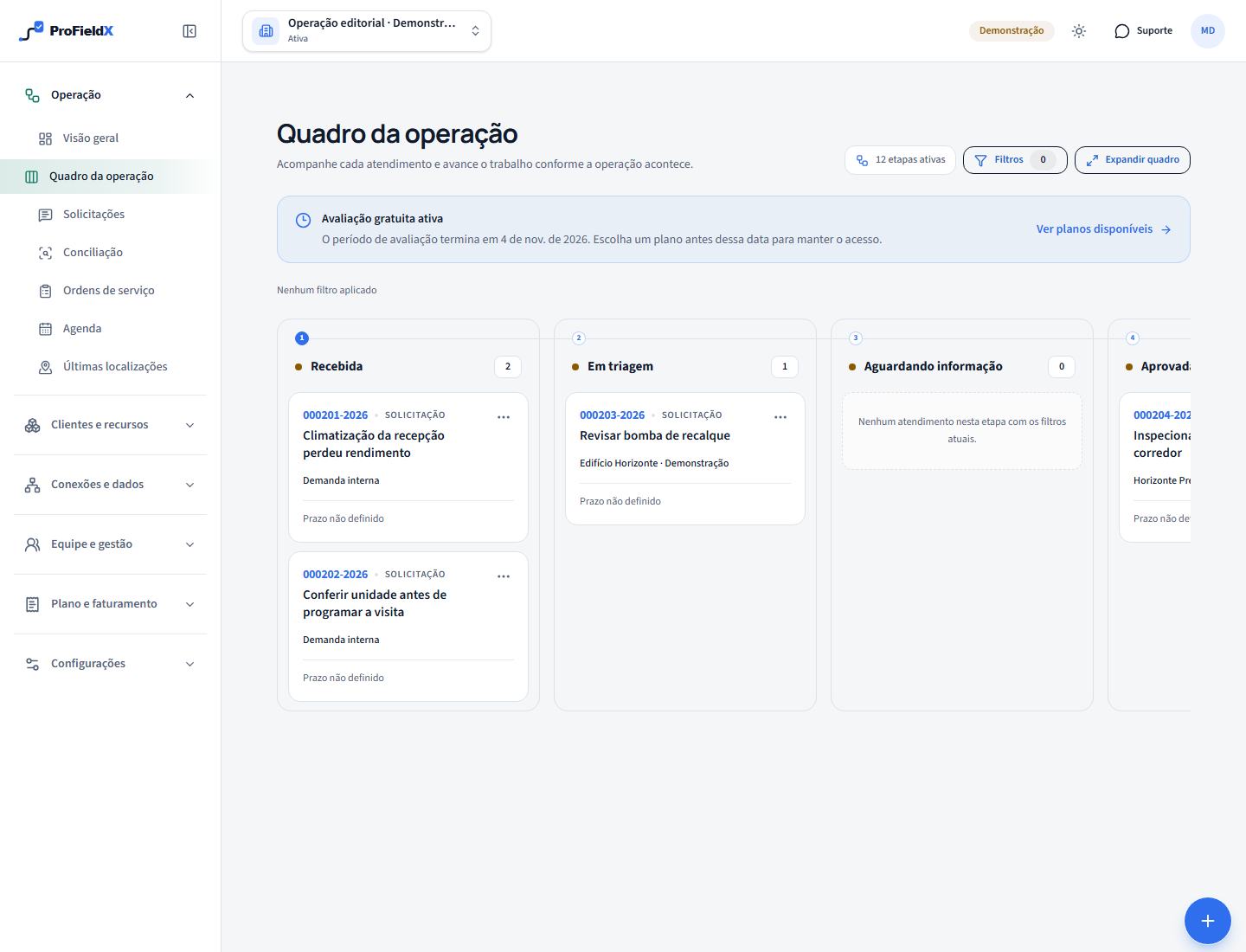
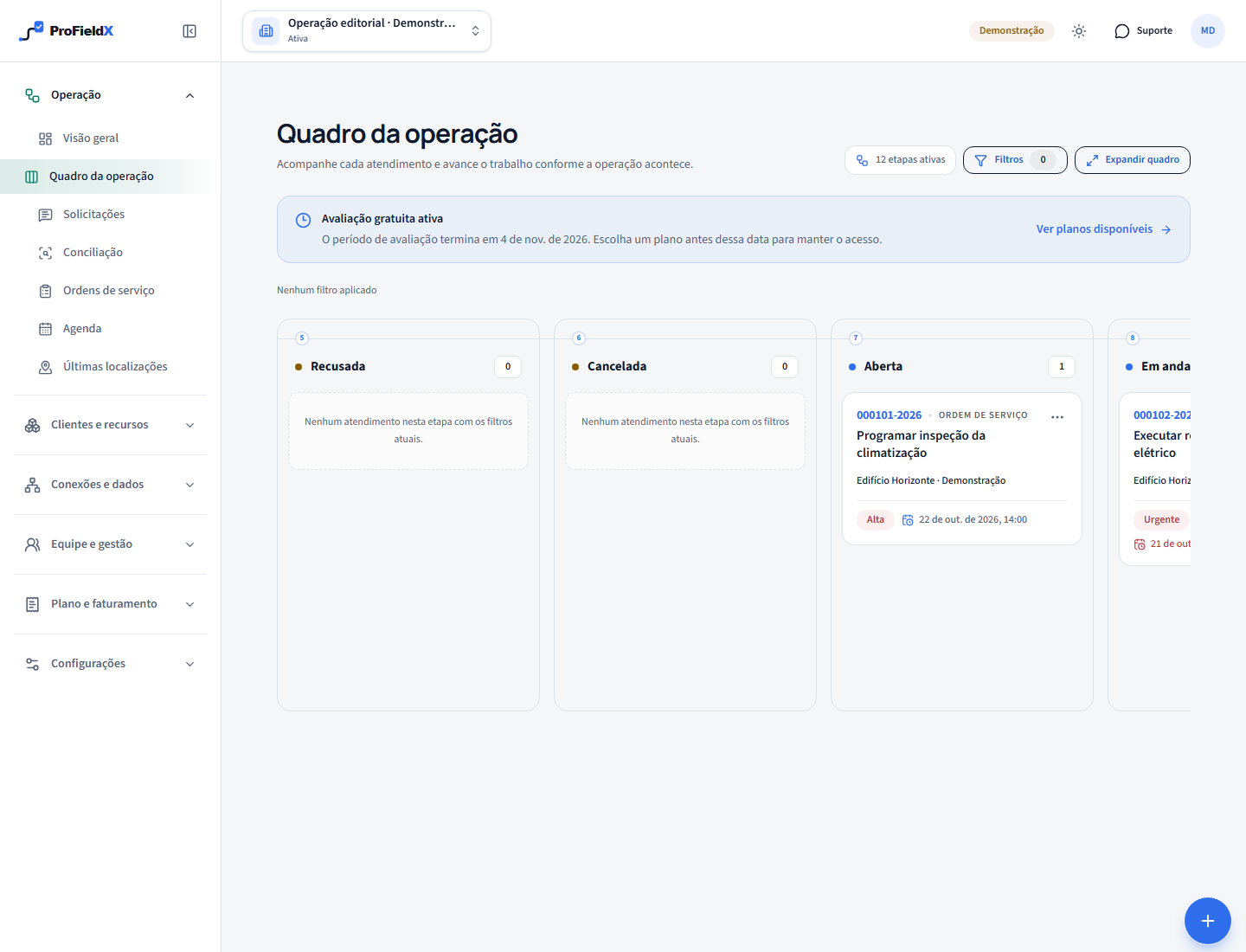
Check the document number, summary, customer, location and due date shown on each card. A request and a work order describe different moments: a request needs to be understood and routed; a work order organizes authorized work. A crowded column is a reason to investigate outstanding decisions before starting more work.
In our fictional facilities example, an HVAC request just arrived, an electrical inspection is in progress and a return visit depends on a part. The next action might be to clarify the first issue, check execution of the second or obtain an update on the part. Treating all three as ready to schedule would hide necessary decisions.
Filter for the question you are answering
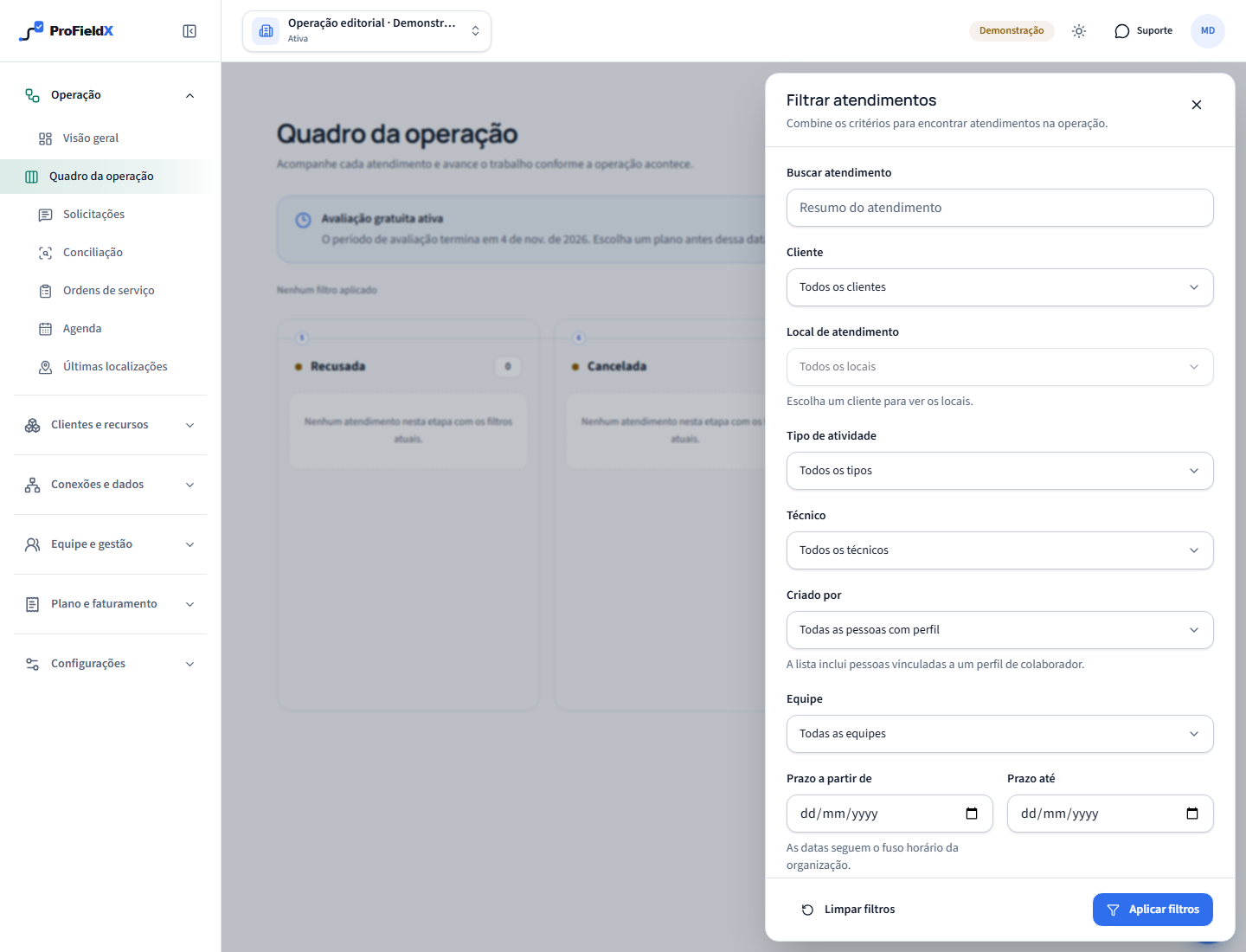
Choose Filter jobs. Narrow the view by summary, customer, location, activity type and due date range. Select a customer before choosing a location. Priority, employee and team filters apply to work orders; assignment reflects associated visits. Creator identifies who entered the job when that option is available.
Apply the filters and check the scope shown. Use customer and location to review a site, or a team filter to prepare a coordination discussion. A due date range excludes records without a due date. Combined filters narrow the results, and priority or assignment filters exclude requests. Clear the filters before concluding that a job is missing.
Check the next step before moving work
Open the card to read its details. To change the stage, use the card's movement menu or drag it when available. The product offers destinations permitted for that record. If the transition requires information, complete the fields in the panel and confirm. Check the result message before continuing.
An approved request can be converted to a work order through the permitted flow. That does not set an appointment window. For a job requiring a site visit, continue in Schedule and record the visit, time and assignment. The visit planning guide in related reading explains that handover. Check the activity due date and visit window separately.
Give waiting work a clear follow-up
In a fictional repair business, the first visit revealed that a replacement part was needed. The waiting work order should retain enough context for another person to understand the return: the outstanding dependency, who is following it up and which information comes next. Add an update in the details, using the internal conversation where appropriate.
When the dependency is resolved, resume through an offered destination. If an action fails, read the message and check the record's state again before repeating it. A column that failed to load cannot support a claim that all work was reviewed. Retry that column and keep other decisions tied to their available context.
An external reference for the team discussion
In Microsoft's published Ausgrid story, the Australian electricity distributor describes fragmented planning systems and adopting a shared view of work with Dynamics 365 Field Service. This is a vendor account about another product, linked in the references. Ausgrid is not presented as a ProFieldX customer.
The practical aim here is to bring context together to decide the next action. Kanban University's guide also offers a foundation for visualizing work and discussing flow. In ProFieldX, combine the board review with team decisions; work in progress limits and capacity allocation need to be agreed within your operation.
Sources
- The Official Guide to the Kanban MethodKanban University — visualizing work and managing flow
- Ausgrid: a shared view of field workMicrosoft Customer Stories — external Dynamics 365 case, September 30, 2025
- How to schedule technical visits in ProFieldXProFieldX Editorial — continue planning
These sources provide context for this guide. Applicable requirements depend on the activity, location, and current rules; consult the responsible authorities and qualified professionals.