Define the purpose and owner of the checklist
Before writing items, decide which service will use the checklist and what decision the responses should support. An incoming inspection, for example, does not need to repeat every maintenance step and every administrative detail from the work order. Agree who reviews the criteria, who maintains the template, and how the team should handle a response that identifies an open issue.
A template can be used on work orders, visits, or both. Choose a work order when the check applies to the job overall; choose a visit when each trip needs its own responses. Do not enable both scopes just to maximize reuse: select the places where the record will actually be completed and reviewed.
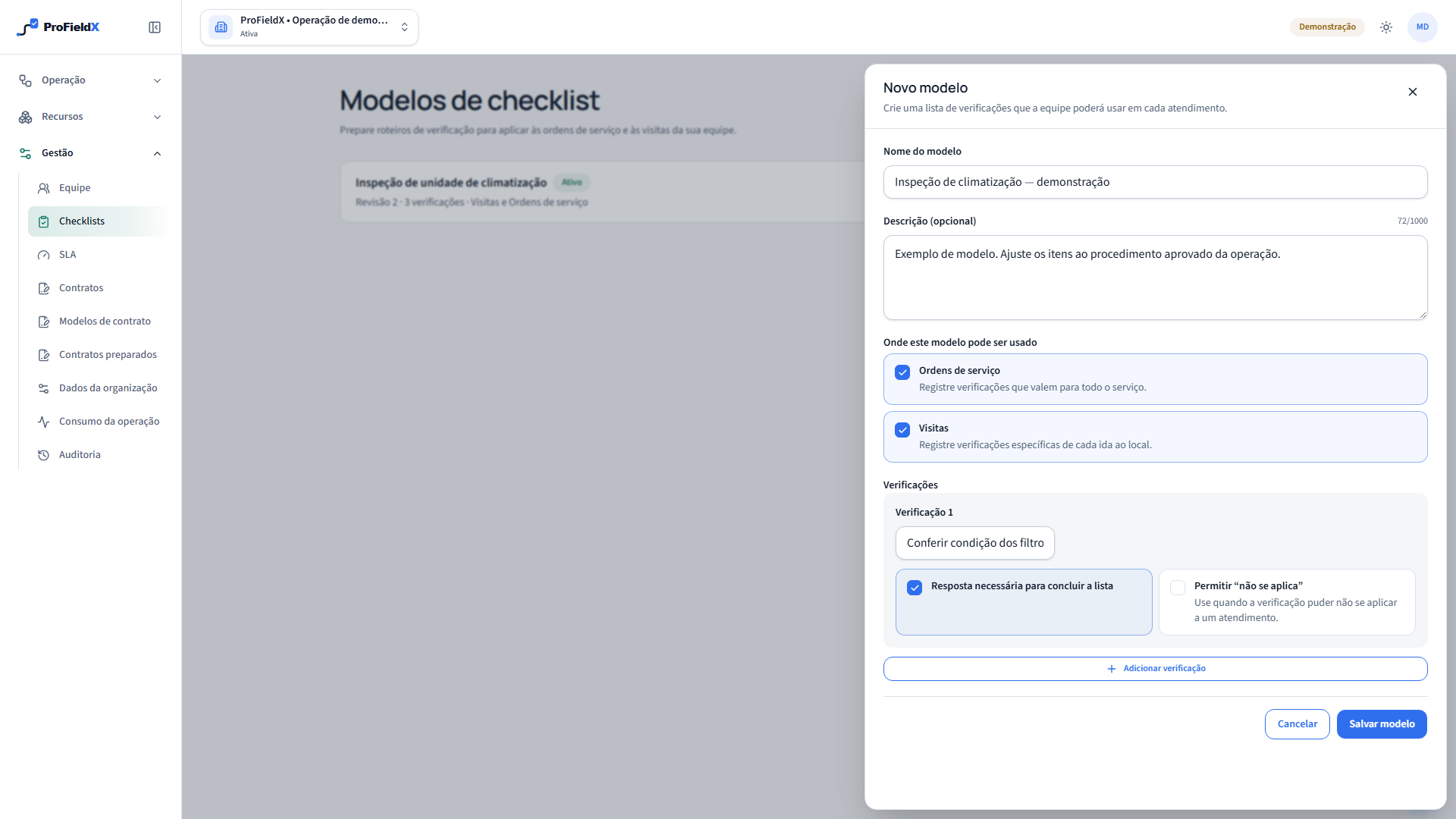
Create a short template with observable items
Open Checklist templates and choose New template. Enter a recognizable name and a short description of its scope. Select where the checklist may be used and write items in the order of the work. Prefer one question or action per item, with a condition that can be observed and answered. Vague prompts such as “everything is fine” do not help the team document what it checked.
Mark as required the responses that must be present before the checklist can be completed. Allow Not applicable only when a check may genuinely not apply to some jobs, and explain that condition in the organization's procedure. Use the description for context, not as a copy of a full procedure. Ask the technical owner to review the content and criteria before saving the template.
Apply the template to the right service
Open the work order or visit that the team will perform and find Service checklist. Choose Add a template, verify its title and revision, and apply it manually. If this checklist must be completed before that service can be closed, select that requirement when applying it; it is not enabled by default. A compatible template can be applied once to that work order or visit.
Confirm the target before applying. Checks that cover the overall service may belong on the work order; checks specific to one trip fit the corresponding visit. If the service needs a return, the next visit can receive another checklist instance and its own responses. Applying a checklist does not assign a technician, schedule a visit, or change the work order status.
Record responses and route exceptions
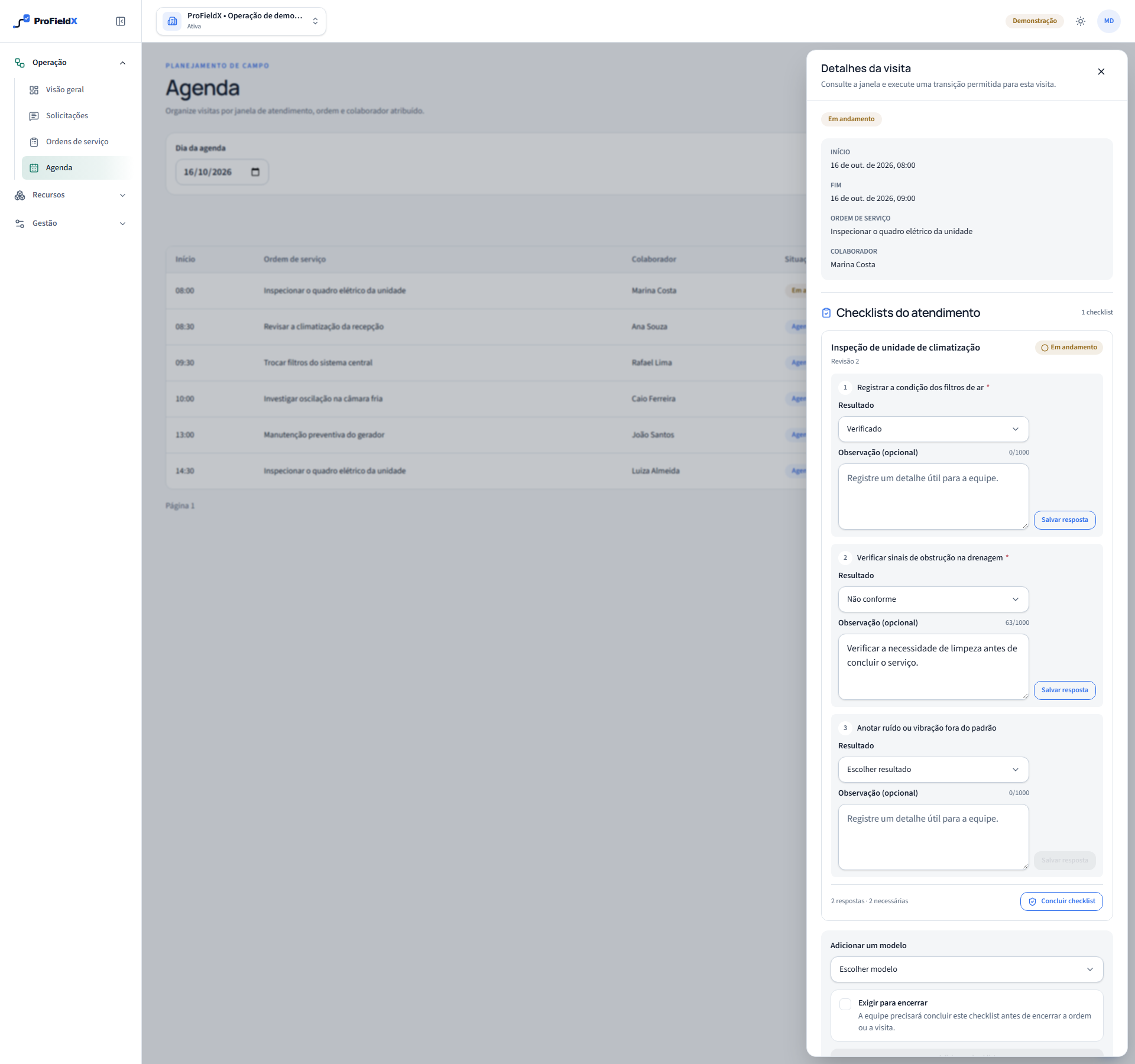
For each item, choose Verified, Not compliant, or Not applicable when allowed. Use Note for a concise finding the next person needs to know, then save the response before moving on. The record keeps who answered and when. If a selection is wrong, correct it while the checklist is open and the person still has permission to respond.
Keep Not compliant visible as an issue for review; do not change it to Verified just to complete the list. Not applicable is available only when the template permits it for that item. A required item needs a response before the checklist can be completed. Responses document what was reported; they do not approve the service or certify legal compliance.
Keep responses, attachments, and closure distinct
If the application is required for closure, complete the checklist after responding to its required items. Completing the checklist and completing the visit or work order are separate actions. An optional checklist does not block closure. The person's permissions and the service status still determine which actions are available.
Notes belong to responses; photos and documents are added through the visit attachments flow and are not linked to an individual checklist item. Review non-compliant results, record the follow-up, and add any files required by organizational policy. Checklists help with traceability, but they do not replace training, an approved procedure, risk assessment, or evidence required by an applicable rule.
Update the template without rewriting past records
When criteria change, edit the template and review the impact with the people who use it. ProFieldX records a new revision for future applications; checklists already applied keep the revision they had when created. An update therefore does not rewrite responses from an earlier visit. If a template is no longer used, archive it to prevent new applications while keeping records associated with past service.
Review ambiguous items, frequent Not applicable responses, and recurring open issues. Use those signals to talk with the process owner, not as automatic proof of failure or compliance. A specific, short, reviewed checklist is easier to apply consistently in the field than a long generic list.
Sources
- Explore the ProFieldX platformProFieldX — work orders, visits, checklists, and service records
These sources provide context for this guide. Applicable requirements depend on the activity, location, and current rules; consult the responsible authorities and qualified professionals.