Make sure the asset is clearly identified
Before creating a plan, check the installed asset record, tag, equipment type, customer, and service location. When similar equipment is installed at the same site, use identifiers and descriptions that help the team distinguish exactly which asset is covered. Correct the physical location in the asset record before planning work; a customer name alone may not point to the right unit.
Set the interval with the person responsible for the maintenance program. Review manufacturer guidance, known condition, organizational criticality, service history, and applicable requirements. ProFieldX supports calendar intervals in days, weeks, or months. It does not use runtime hours, sensor condition, or a universal equipment-specific recommendation.
Create a plan or apply a template
In Preventive maintenance, create a plan for one piece of equipment with a title, first due date, interval, and description for the future work order. Keep the description useful for planning without presenting it as a full technical procedure. Confirm that the plan is linked to the expected asset, customer, and site before saving.
When an approved routine applies to several assets of the same type, create a template and apply it explicitly to the compatible assets you select. The application creates a separate plan for each asset; equipment added later is not included automatically. Editing the template also does not rewrite plans already created. Review those plans individually if the maintenance policy changes.
Treat a suggestion as a review point
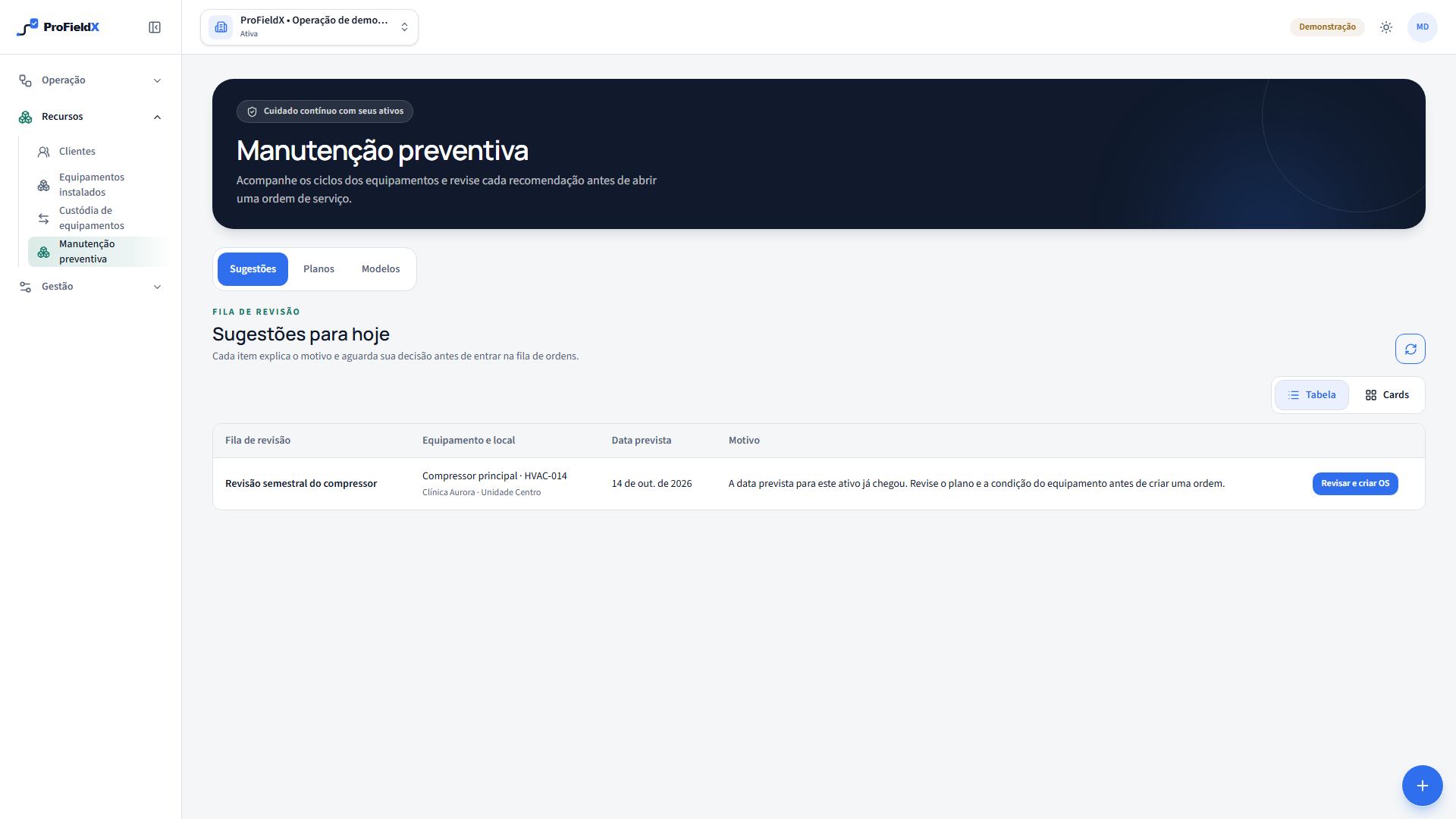
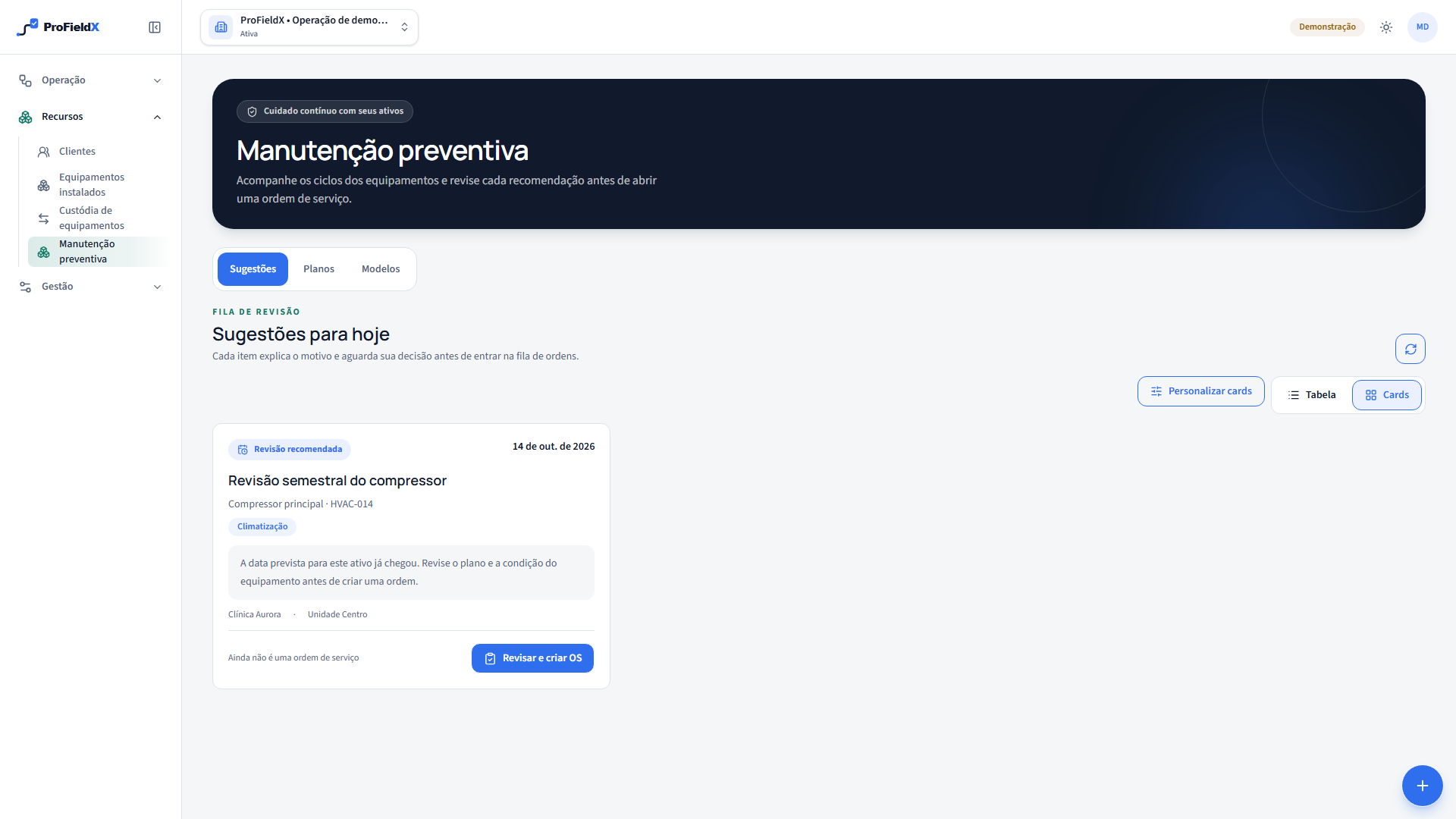
The Suggestions tab shows occurrences that reached their due date. Check the asset name and tag, customer, site, plan title, explanation, and date. Compare the occurrence with recent work, observed condition, access, and parts availability. A suggestion comes from the plan calendar: it is not an open work order, a fault diagnosis, or an urgent callout.
If the asset has been replaced, the service already happened, or the date needs review, do not confirm for convenience. Ask the maintenance lead to validate the plan and next action. The queue brings an occurrence forward for a decision; the team still needs to understand the technical and operational context before creating work.
Confirm to create the work order
When the occurrence still makes sense and the operation is ready to plan the work, choose Review and create work order on its row. Confirmation creates an order linked to the preventive occurrence and advances the plan's next date. Then find the order in the normal workflow and verify its summary, asset, location, and description before assigning a team or time.
Confirmation does not create a visit or reserve calendar capacity. The order must go through normal planning, including priority, availability, materials, and access. If confirmation fails, check whether an order already exists before trying again. The queue and work order serve different purposes: one highlights a review point; the other records work authorized for execution.
Record the work and open issues
A preventive work order can receive one or more visits. Use the calendar to set a time window and assignee based on actual team capacity. After service, record what was done and what remains open in the work order and visit context. If the work is postponed, it may need to be planned again; keep the completion of one trip distinct from completion of the work order.
Compare planned scope with what the team found without treating one response as an automatic change to the plan. If the visit discovers an unexpected condition, send the finding for technical review. Clear records help another person understand why an occurrence was completed, rescheduled, or sent for further assessment.
Review the program against technical sources
Use the Plans and Templates tabs to check intervals and upcoming dates. Confirm that the description still matches the intended work and that each plan points to the correct equipment. When reviewing completed orders, look for useful context such as recurring open items, condition changes, or access barriers. A decision to change an interval remains a technical one.
The U.S. Department of Energy's Federal Energy Management Program O&M guide discusses preventive maintenance as one strategy within an operations and maintenance program, along with trade-offs between approaches. It is a U.S. technical reference, not Brazilian regulation or a universal schedule. Combine manufacturer guidance, local assessment, and applicable Brazilian requirements for each asset.
Sources
- Operations and Maintenance Best Practices: A Guide to Achieving Operational EfficiencyU.S. Department of Energy, Federal Energy Management Program (U.S. technical reference)
These sources provide context for this guide. Applicable requirements depend on the activity, location, and current rules; consult the responsible authorities and qualified professionals.